
Put a missing spell back on your action bar
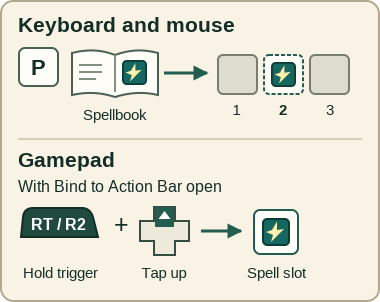
If one spell has vanished from your action bar, open your Spellbook and put it back in the empty slot. On keyboard, press P and drag the spell there. On a gamepad, highlight the spell, choose Bind and press the button combination for the slot. If every icon changed at once, find your usual bar first. Your spells may already be there.
Check whether one spell or a whole bar disappeared
Look for an ability you normally keep beside the missing one. If its neighbors are all in place, go straight to replacing the empty slot. If every icon is unfamiliar on keyboard, return to your usual main bar page with the page arrows beside the bar. A Druid who just changed form should switch back to the form that held the ability. On gamepad, release both triggers. If the icons still look wrong, hold both bumpers and tap D-pad left or right until you recognize the set.
Put a learned spell back in its keyboard slot
Outside combat, press P or open the Spellbook from the game menu. Find the spell you learned. If several ranks are listed, read the rank and mana cost on the one you want. Drag its icon from the book onto the empty slot and release the mouse. The slot keeps its existing key. Hover over it to check the spell name. To move an existing icon out of the way on a locked bar, hold Shift while dragging it to a spare slot.
If the icon came from a bag, open the bag and drag the item back to the bar. A Hearthstone appears in your bags. A custom macro lives in the Macros window. If a class ability is absent from the Spellbook itself, check whether this character has learned it from a trainer.
Assign the spell to a gamepad button
Open the main menu with Menu on Xbox or Options on PlayStation. Choose Spellbook. Highlight the learned spell and read the Bind prompt, normally X on Xbox or Square on PlayStation. Press it to open Bind to Action Bar. For example, to fill the slot on right trigger and D-pad up, hold RT or R2 and tap up while the binding prompt is open. Choose an empty slot to keep your other spells.
On a PlayStation-style layout, L1 and R1 are the bumpers and L2 and R2 are the triggers. Use the prompt visible on your screen if its label differs. Releasing the trigger changes which spells you see. It keeps the assignment you just made.
Check the icon, the key and the cast
Close the Spellbook. On gamepad, hold the trigger you chose and watch for the spell in the matching D-pad position. If pressing the control jumps or opens a panel, close the panel and check the active bar. On keyboard, try the spell with a mouse click and then with the slot’s key. If the click works but the key does nothing, use Game Menu, Options, Keybindings to assign a key to that slot. For a safe test, a Priest who knows Power Word: Fortitude can select themself, cast it and check for the buff.
If it disappears again after logging out
Make the repair on one slot, log out through the game menu and return to the same character. Check the same form, talent specialization, bar page and input as before. Blizzard fixed a November 13 bug that cleared bars on logout for characters with Secondary Talents. If one still empties repeatedly, disable your action-bar addon for this character and repeat the one-slot test with the built-in bars. Record which slot and input lost the spell before rebuilding the rest.
Sources for this guide
- Blizzard · Forever Spellbook, dragging abilities and changing keyboard bindings
- Blizzard · controller sets, trigger bars and button legend
- ConCon and NerdsChalk · recorded gamepad Spellbook and binding prompts
- Windows Central · hands-on gamepad trigger layers and face buttons
- BindPad Forever maintainer · Shift-drag on a locked bar and choosing spell ranks
- Blizzard · November 13 Secondary Talents logout fix